
The more I use agents, the more I install for them: skills with a team's test conventions or for drafting release notes, plugins from a team marketplace, MCP servers for GitHub, an issue tracker or internal tools. Each one is useful some of the time. Until recently, each one was either on or off.
On meant it came along to every new chat, whether that chat needed it or not. Off meant uninstalling it and setting it up again later. And when an MCP server stopped answering, the first sign was usually an agent telling me a tool call had failed.
In version 1.14.0 of the desktop app, the section where all of this lives is called Customize (it used to be Marketplace). It has three changes I built: a status for every installed item, skill updates from the skill's own page, and a health check for MCP servers.
Active, Available or Disabled
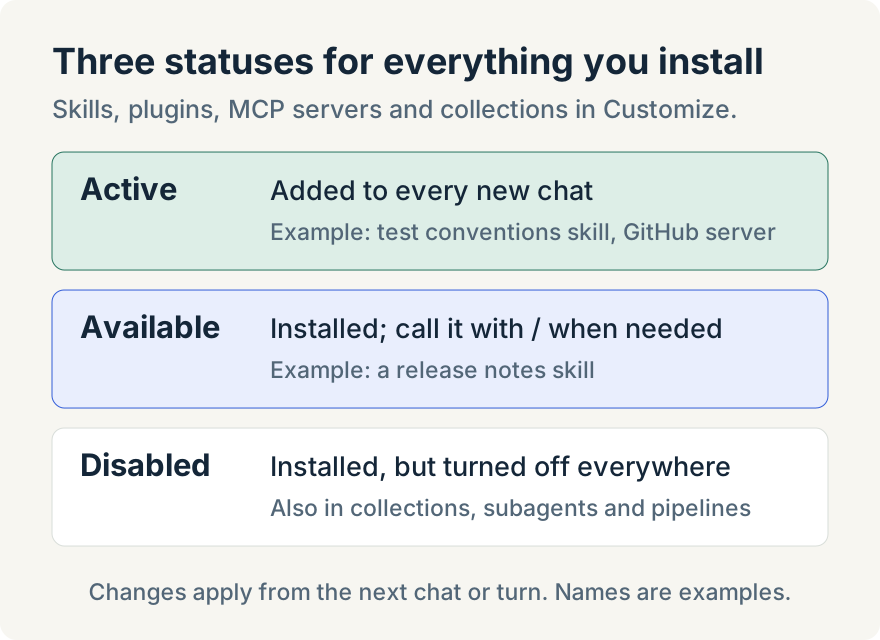
Every installed skill, plugin, MCP server and collection now has one status. You set it from the status menu on its row in the Installed list, or on its page:
- Active: "Added to every new chat."
- Available: "You can call these manually with /."
- Disabled: "Installed, but turned off."
Here's how I use them. The few things I want in nearly every chat stay Active, say a skill with test conventions and a GitHub MCP server. Skills I need only for one kind of job, like a release notes skill, are Available. They don't sit in every chat's context, and when I need one I type / and call it. A chat starts with what it needs, and the rest is one keystroke away.
Disabled is for things I want to keep but not use right now: an MCP server for a tool I'm not working with this month, or a plugin that overlaps with another one. Disabling keeps its setup, so turning it back on is one menu choice rather than a reinstall. Disabled also means off everywhere. Collections, aliases, subagents a chat delegates to, App Advisor and pipelines all respect it, so a disabled item doesn't come back in through a side door.
Built-in workflows always show as Available, because they can't be turned off. Uninstall is still there, in the More menu, when I really want something gone. Uninstalling a collection removes the collection but keeps the skills in it installed.
Two things to know. A change applies from the next chat or turn; a tool already running in a chat may need a new chat to drop it. And Available can't keep everything out. A plugin that's enabled in Claude Code itself still loads in Claude chats, because Claude Code loads it, and Cursor and Copilot chats share that set. When I want one of those out of my chats, I set it to Disabled.
Updating a skill from its page
Skills installed from GitHub change upstream. Someone fixes an instruction, adds an example or tightens a script. Now I can bring those changes in without reinstalling.
On a skill's page, the More menu has Check for updates. If the repository has a newer version, the page says Update available, "A newer version of this skill is ready to install.", with an Update button. If nothing changed, the line under the title reads Up to date. The installed skills list has its own Check for updates button that checks them all, and it marks the skills with an update.
If a skill has been removed from its repository, the page says "This skill is no longer in its source". I can keep using my copy or remove it.
The limits: this works only for skills installed from GitHub. Built-in skills and skills you wrote yourself don't update this way. There's no version number or changelog, so when I care about what changed, I read the skill after updating. Updates run in the desktop app.
When an MCP server stops working
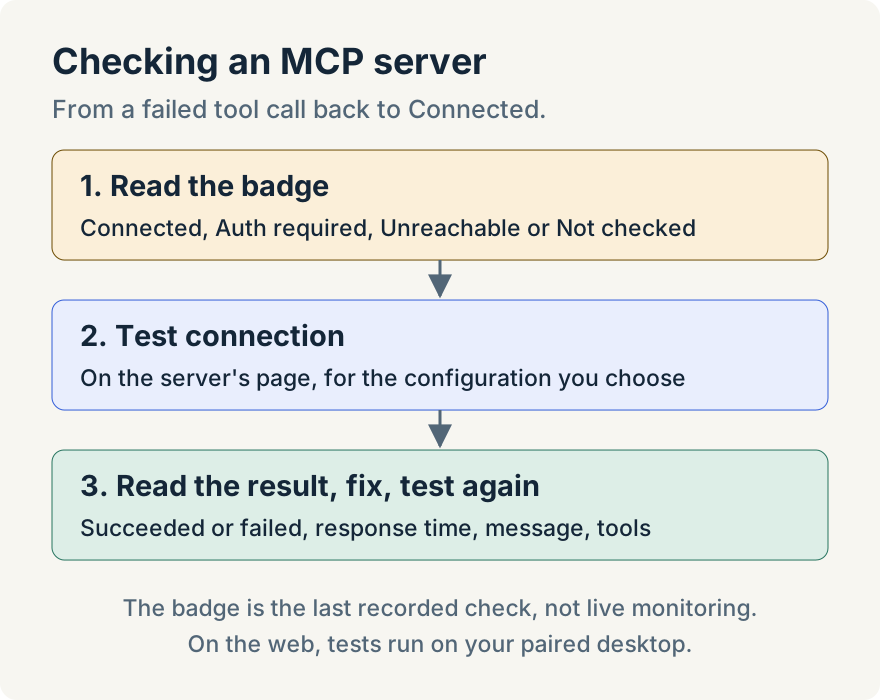
The MCP servers list now shows a health badge on each server: Connected, Auth required, Unreachable or Not checked. The badge is the last recorded check, not live monitoring, so I treat it as a hint about where to look.
When an agent reports a failed tool call, I open that server's page. Its Health section shows the badge and when it was last checked. I choose the configuration to test and select Test connection. The result says Connection succeeded or Connection failed, with the response time and the server's message, and when it succeeds it lists the tools the server offers.
That's usually enough to tell a server that's down from one that needs me to sign in again, or a typo in a URL. After I fix the setting, I test again and check that the badge reads Connected before I go back to the chat. The page also has Delete, which asks before it removes the server.
From a browser, too
If you use Unstoppable on the web with your desktop paired, Customize there shows the same statuses and health badges. Status changes, tests and deletes run on your desktop, so it needs to be online. Skill updates still happen in the desktop app.
Try it
Statuses, skill updates and MCP server health are in version 1.14.0 of the desktop app. Open Customize from the sidebar, or press Cmd+5 (Ctrl+5 on Windows). If you're new to skills or MCP, Aaron's explainers What Is an AI Agent Skill, and How Does It Help? and What Is an MCP and Why Do Coding Agents Need It? cover the basics. You can download the app here.