
Agents keep working when I leave my desk. Sometimes one of them stops to ask a question that I could answer quickly, if I were at my computer. Remote Control lets me answer from a phone instead. Pairing the phone used to mean typing a six-digit code; I built a way to do it with the phone's camera.
Pairing in four steps
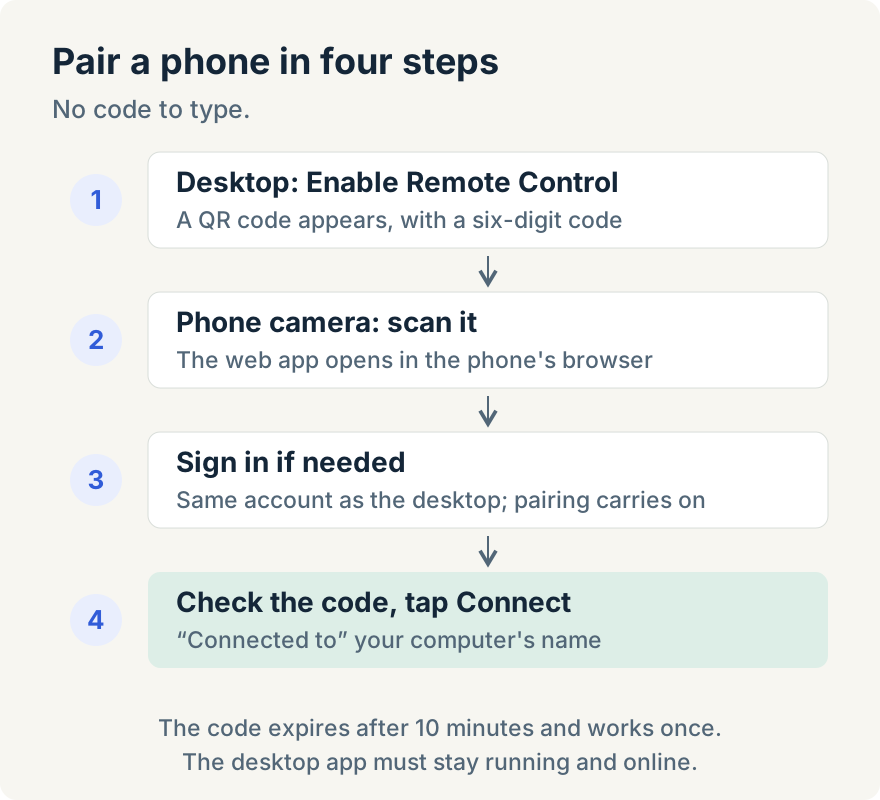
- In the desktop app, open Remote Control in the left sidebar and select Enable Remote Control. A QR code appears, with a six-digit code under it.
- Point the phone's camera at the QR code. It opens the Unstoppable web app in the phone's browser.
- If the phone isn't signed in, sign in to the same account as the desktop. The pairing carries on afterwards; there's nothing to type.
- Check that the code on the phone matches the one on the desktop, and tap Connect. The phone shows "Connected to" and the computer's name.
If the camera route doesn't work, typing the six-digit code into Remote Control on the web still does.
What I do from the phone
Once paired, the phone controls the sessions running on that computer. The things I find most useful are small: answering an agent's question, sending a follow-up or queuing the next message, stopping a turn that has gone the wrong way, and approving a plan so the agent can start. I can also run or retry a pipeline and read files and diffs, though I save real review for a bigger screen.
That's what makes leaving long tasks running practical. Aaron's guide to managing parallel agents without losing track covers why steering from a browser matters when several agents run at once.
What keeps it safe
Opening the link doesn't pair anything by itself; pairing happens only when you tap Connect. The code expires after 10 minutes, works once, and only for your own account. It travels in the part of the link that browsers don't send to the server. To end the session, select Disable Remote Control on the desktop.
Limits
- The desktop app has to stay running and online. The phone steers sessions on that computer; it doesn't run them.
- Same account on both. A code only pairs with the account that created it.
- It opens in the phone's browser, not in the mobile app.
- Your plan may not include Remote Control. If it doesn't, the desktop shows an upgrade option instead of the Enable button.
- Unpairing happens on the desktop. There's no unpair control on the phone yet.
QR pairing is in the desktop app from version 1.10.0. Download the app, open Remote Control, and scan the code.