
When an agent finishes a large piece of work, I want to know two things: did it do the job, and what did it cost? The first I can check in the diff. The second used to mean opening provider usage pages and guessing which session belonged to which task.
The desktop app now has a Cost panel for that question. It shows the observed cost of the work in one worktree, Cowork entry or App Advisor entry, and a Session breakdown for each chat inside it. I worked on both panels. This is how I use them, and where the numbers stop being reliable.
Where the numbers come from
The panel adds up everything the agents in an entry did, not only the chat turns I typed into:
- Chat turns, the normal back-and-forth.
- Subagents and delegations that a chat handed work to.
- Pipeline steps, counting every attempt, so a step that retried three times shows up three times.
- Background jobs that write chat titles, branch names, commit messages and pull request descriptions.
Archived chats stay in the total, and an entry keeps its cost after it's archived.
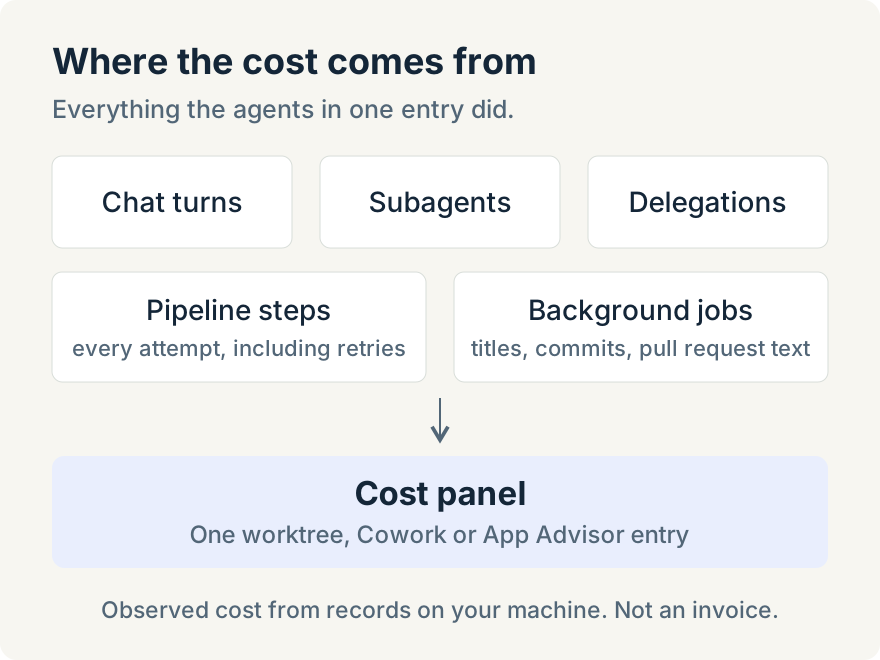
The figures come from the app's own records on my machine, in US dollars. For Claude, it's the amount the provider reports with each turn. For Codex, it's an estimate from published prices, and the panel says "Codex cost is an estimate." The records don't include prompts, replies or file paths.
History goes back as far as the retention setting under Settings, Agent observability, which defaults to seven days and goes up to 90. If I want to look back over a month, I raise that first. It doesn't fill in anything from before the setting changed.
Finding the chat that cost the most
After a big refactor, I open the Cost panel for that worktree. The quickest way is Open Cost Panel from the command palette; there's also a Cost section in the Activity rail with an Open Cost panel button.
I sort the Chats list by Highest cost and open the top one. That opens its Session breakdown, which has three tabs.
The Cost tab starts with "Where it went": chat turns, subagents, delegations and background work. This is where I look first. A chat that looks short in the transcript can still cost a lot if it started several subagents, each reading many files.
The Context tab shows how full the context window got (Peak) and how many times it was compacted, with a per-turn chart. A chat that compacted several times was carrying a lot of context from turn to turn, and that has a cost.
The Activity tab shows the number of turns, tool calls, the slowest turns, the tools used most and which models did the work.
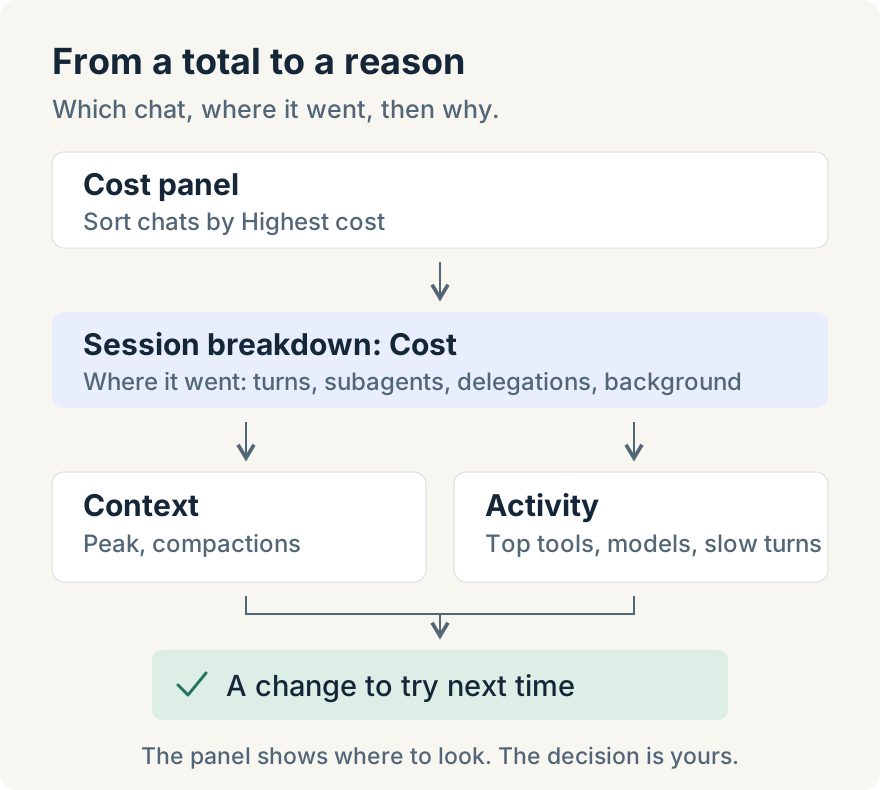
None of this tells me what to do. It tells me where to look. When the top tools are file reads and searches, the agent was probably rediscovering context I could have given it up front, so next time I start that kind of task with a narrower brief. When a chat compacted repeatedly, I split the work into smaller chats. When most of the cost sits in routine subagent work, I try that kind of task on a smaller model and compare the next run.
Checking what a pipeline run cost
Pipeline runs are listed separately in the Cost panel, under Pipeline runs. Inside a run's details there's now a Cost item with what each step cost, including retries, and the run's total by billing.
I find this useful before deciding to run a pipeline on every pull request. A review pipeline with a few agent steps is worth knowing the price of when it runs dozens of times a week. Aaron explained why gates like this matter in setting up quality gates for AI-generated code; the cost view is how I check that a gate is earning its place.
Seeing how the work was paid
The Cost panel has a switch between By source and By billing. By billing splits the total into how each piece of work was paid: subscription, AI Credits, API key, an organization gateway, or a local model.
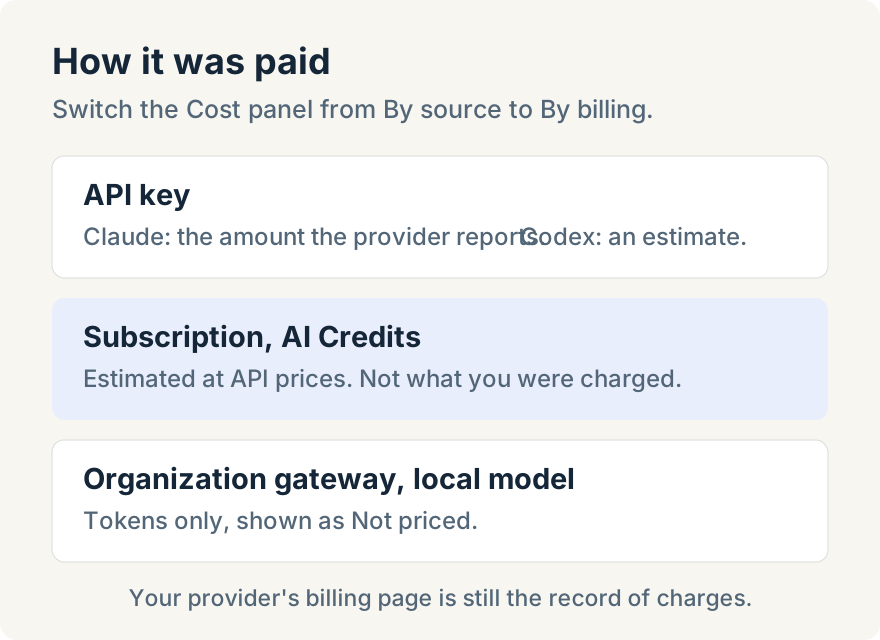
Read the subscription line carefully. If I run Claude Code or Codex on my own subscription, the dollar figure is what the same work would cost at API prices. The panel says so: "Subscription and AI Credits amounts are estimates at API prices, not charges." I find that number useful for a different reason. It shows roughly how much work my subscription is covering. If you want the longer argument about subscription and API pricing, Pepe covered it in how much AI labs subsidize coding subscriptions.
Work through an organization gateway or a local model records tokens but no dollars, so it appears as "Not priced" rather than as zero.
Subagents and archived work
Each subagent panel has its own Cost section, labeled "Part of the cost of the chat turn that started it." For Claude subagents, the app splits the turn's cost across subagents by token counts and model, so treat that split as an estimate.
When I archive a worktree, its Cost tab moves to the front of the archived view and shows the final total. That makes a finished project easy to check later, within the retention window.
Where it stops
A few limits are worth knowing before you rely on it:
- It's not an invoice. Claude amounts are what the provider reports. Codex amounts, and anything on a subscription or AI Credits, are estimates at API prices. Your provider's billing page is still the record of what you were charged.
- Desktop only. The web app, cloud chats and the mobile app don't have cost views yet.
- Retention limits history. Nothing older than the retention setting is available.
- Some work has no price. Organization gateways and local models show tokens only.
- Codex subagents aren't split out. Subagent rows are attributed for Claude only.
- New installs start empty. Costs appear after the first reply, and the panel says "Building cost history" until there is some.
If you run several agents and pay for them in different ways, the panel won't make the budget decision for you. It does replace "AI is expensive" with something more useful: which task, which chat, which model, and how it was paid. For the team-level version of that question, see what it costs to run multiple AI agents in the same workspace.
The Cost panel is in the desktop app from version 1.11.0. Download the app, open a worktree you've used this week, and run Open Cost Panel from the command palette.