
When a chat hands work to subagents, the transcript shows the hand-off and, eventually, the result. The part in between is where things go wrong: a subagent waiting for an approval nobody sees, one that failed early, one still running long after the others finished.
The Subagents panel in the desktop app shows that middle part. It draws the tree of agents a chat has handed work to, lets me filter it down to the ones that need me, and opens any subagent's own chat. I built the panel and the subagent chat view. This is how I use them, and what they can't do yet.
Opening the tree
There are three ways in. The Subagents entry in the panel menu opens one panel per worktree. The View tree button in a chat's Agent activity section opens it focused on that chat. And Open chat on an agent card goes straight to one subagent.
At the top, a root chat picker lists the chats that have subagents, split into Active and Finished, with a count such as "4 active · 10 subagents". I pick the chat I care about and the tree fills in below.
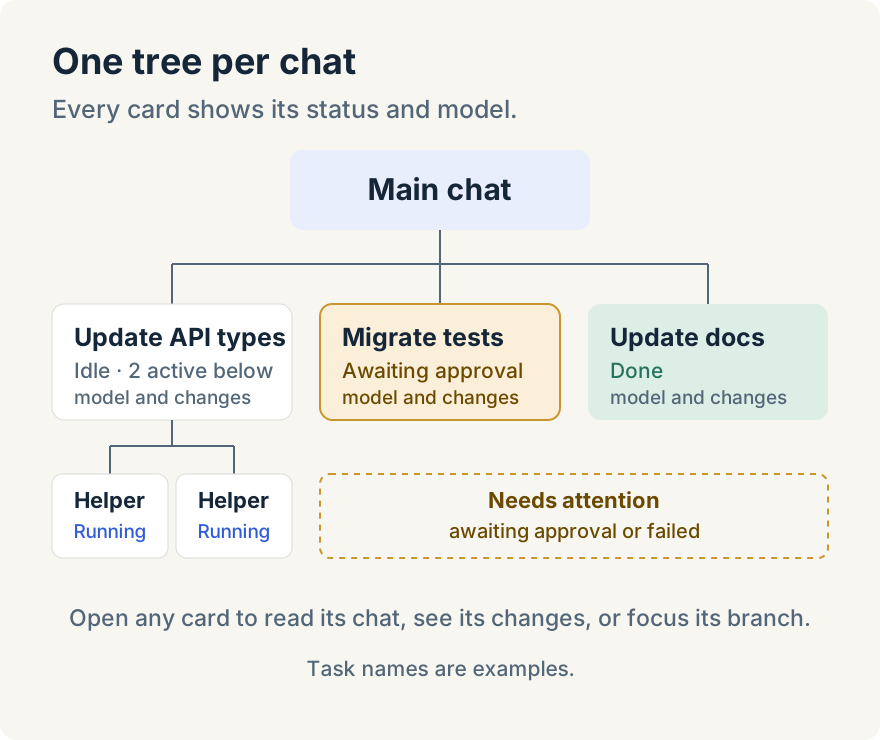
Each card shows the subagent's status, its title, any lines it changed, and the model it runs on. Statuses are the ones you'd expect: Queued, Running, Awaiting approval, Idle, Done, Interrupted, Failed, Cancelled, and "Stopped by parent". A parent that has gone quiet while its children work says so, for example "Idle · 3 active below", which saves me from thinking it's stuck.
Which subagents appear
On the desktop, two kinds show up.
Claude Code and Codex subagents are the ones those agents start themselves. The panel reads them from the chat, so they appear without any setup.
Managed delegations are child agents that Unstoppable starts and tracks itself, and they can run on a different model from the chat that started them. These are an experiment for now, off by default and available on macOS and Windows. To turn them on, go to Settings, Experiments, Managed delegation, and set "Delegate tasks" to "Only when requested" or "When useful". Turning them on replaces the agents' own subagent tools, so you'll see managed delegations instead of native ones.
The difference matters for what you can do, which I'll come back to.
Finding the one that needs me
On a big task, I don't read the whole tree. I use the filters: All, Active, and Needs attention. Needs attention means a subagent is waiting for an approval or has failed, which covers most of the moments when I actually have to act.
If the tree gets deep, the Levels control limits how far down it draws, with a "5 more below" marker I can click to focus on that branch. When I want to compare subagents side by side, I switch from Tree to List, which has columns for task, status, model, workspace, changes and elapsed time.
Selecting a subagent opens the inspector: its model and thinking level, whether it works in its own isolated worktree or shares its parent's, what it changed, its lineage, and the subagents it started. From there, Show changes opens its diff and Open chat opens its transcript.
Reading a subagent's own chat
The subagent chat is where I find out why something happened. The banner shows its lineage. Show details opens its setup (type, model, harness, permissions, and token usage, with cost when the provider reports it) and, for an isolated worktree, where it branched from and what it changed. The transcript marks where its task came from, any follow-ups, and each separate run.
When a subagent failed, this is usually enough to tell whether it was missing context, hit a permission it didn't have, or ran into a real problem in the code.
Talking to a subagent
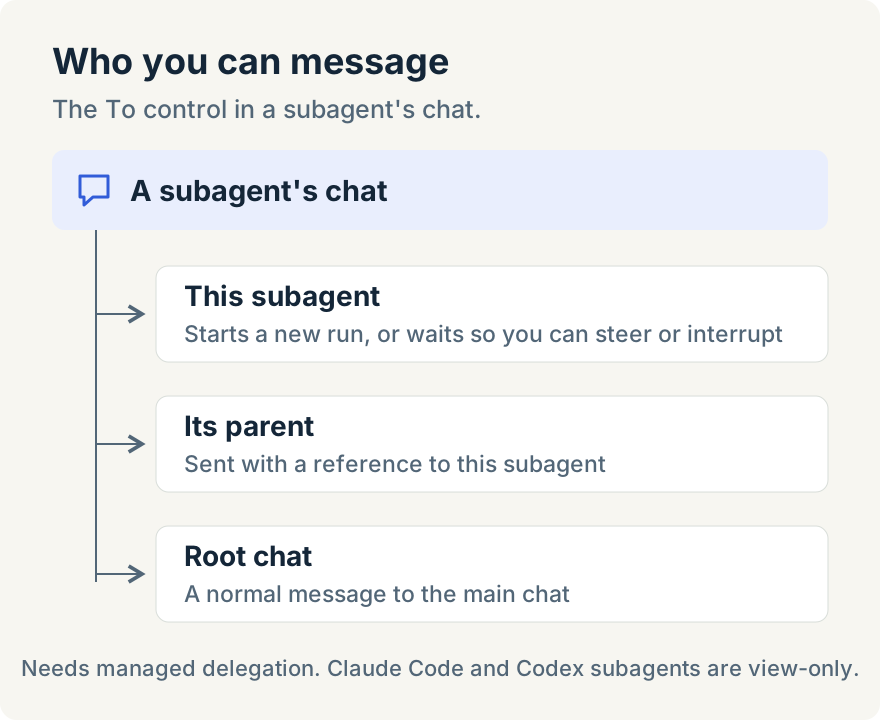
With managed delegations, the chat composer has a To control. I can send a message to:
- This subagent. If it's idle, the message starts a new run. If it's running, the message waits in a queue, and I can press Steer to deliver it now or Interrupt to stop the current run first.
- Its parent. The message carries a reference to the subagent, so I can ask "why did you give it this task?" without copying anything. The parent's chat opens.
- The root chat. A normal message to the main chat, which comes into view.
The inspector also has a Stop button for live managed subagents. It stops that subagent and everything it started. Interrupt is gentler: it ends the current run but leaves the subagent available for follow-ups.
Claude Code and Codex subagents are different. I can watch them, but I can't message them; the composer suggests asking the parent instead. A Claude Code subagent can be interrupted. A Codex subagent can't, and the app says so rather than guessing.
From a browser
When I'm away from my desk, Remote Control in the web app has a Subagents panel too, for a desktop I've paired. It's more limited. It shows managed delegations only, built from the chat messages loaded so far, so the tree can be partial, and the panel says "Showing subagents from the messages loaded so far". I can send messages to the root chat, but not to a subagent or its parent, and there's no Stop.
Where it stops
- Messaging and Stop need managed delegation, which is an experiment that's off by default, on macOS and Windows only.
- Claude Code and Codex subagents are view-only, apart from interrupting a Claude Code subagent.
- The web view is partial and read-mostly, and needs a paired desktop. There's no mobile app view.
- The desktop tree keeps the newest 1,000 delegations.
- No cost or timing on the tree cards. Elapsed time is in the List view, and token usage is in each subagent's details. For cost, I use the Cost panel.
Running several agents at once only works if you can see what they're doing. Aaron's guide to managing parallel agents without losing track covers the setup side; this panel is the visibility side for work a chat hands off. The Subagents panel is in the desktop app from version 1.9.0. Download the app, start a task that uses subagents, and open Subagents from the panel menu.