You sign in to Unstoppable Code through your browser, on the web and from the desktop app.
Sign in
On the sign-in page, choose one of the options shown, such as Continue with Google or Continue with GitHub. The page only shows the options that are available to you, so yours may differ.
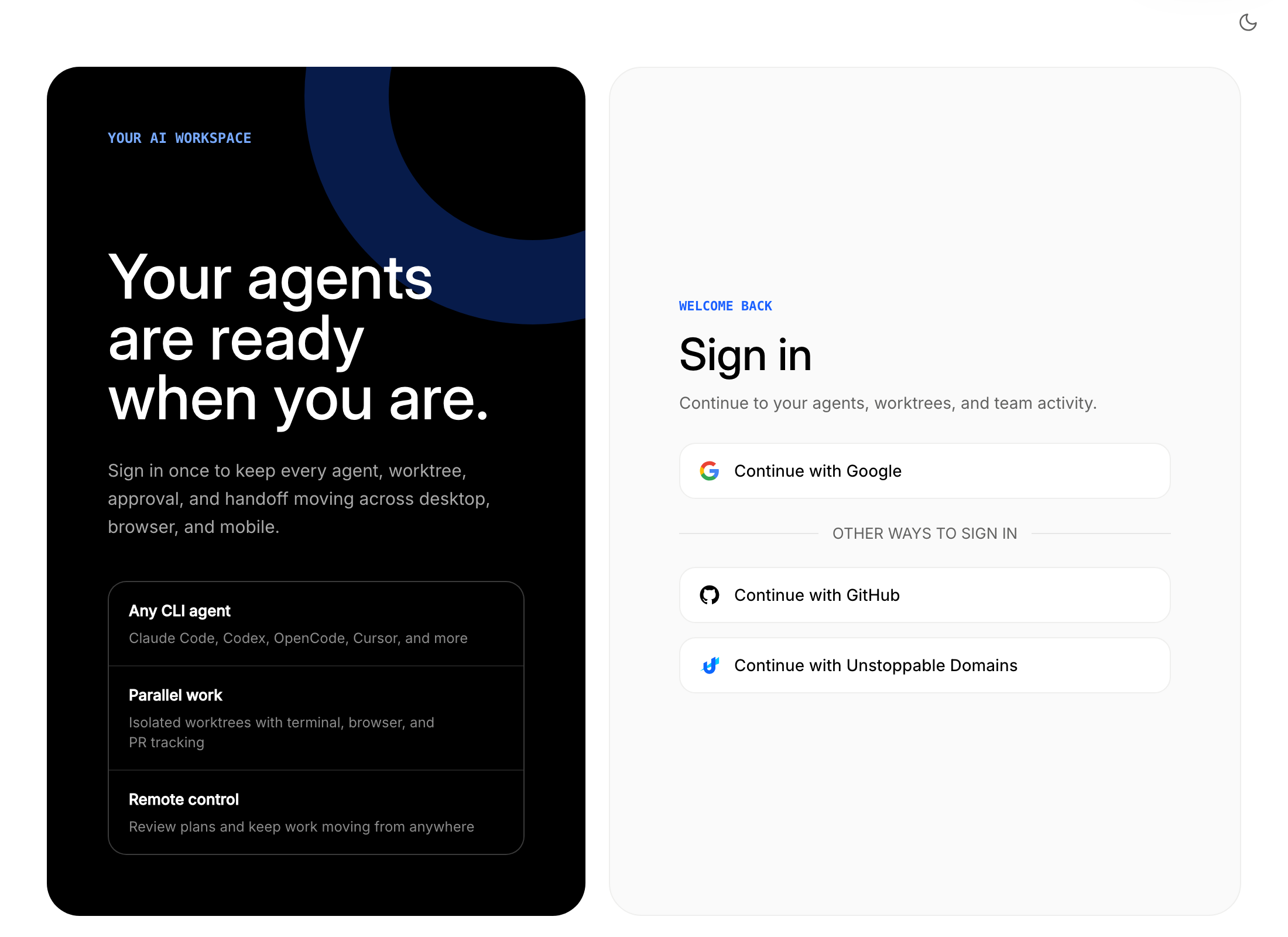
In the desktop app, open the account menu in the sidebar and select Sign in. The app opens your browser to finish. You can also sign in from Settings under Accounts. While you finish in the browser, the app shows that it is waiting.
To use a different account later, open Settings, go to Accounts, and select Change account.
Turn on two-factor authentication
Two-factor authentication asks for a code from an authenticator app when you sign in.
- On the web, open your account and go to the Security tab.
- In the Two-factor authentication card, select Enable 2FA.
- Enter your password if asked, then scan the QR code with your authenticator app or enter the setup key.
- Enter the authentication code, then select Verify and finish.
- Save your backup codes somewhere safe. They are shown once.
The next time you sign in, enter an authentication code or a backup code. Select Trust this device for 30 days if you do not want to be asked on that device each time.
If you run out of backup codes, select Regenerate backup codes in the same card.
If your access is pending
New accounts are let in as capacity opens up. If you see Early access requested after you sign in, your request is in and there is nothing more to do. Sign in again later, or select View request status on the home page to check.
If you cannot get into your account, contact support.