Unstoppable Code checks for updates on its own. When one is ready, a prompt appears at the bottom of the sidebar.
Install an update
By default the app downloads updates in the background. When the download finishes, the sidebar shows Restart to update.
- Select Restart to update to restart and install now.
- Select the clock button beside it, Install when idle, to queue the update instead. The prompt changes to Update queued. To back out, select the close button on the prompt, Cancel scheduled install.
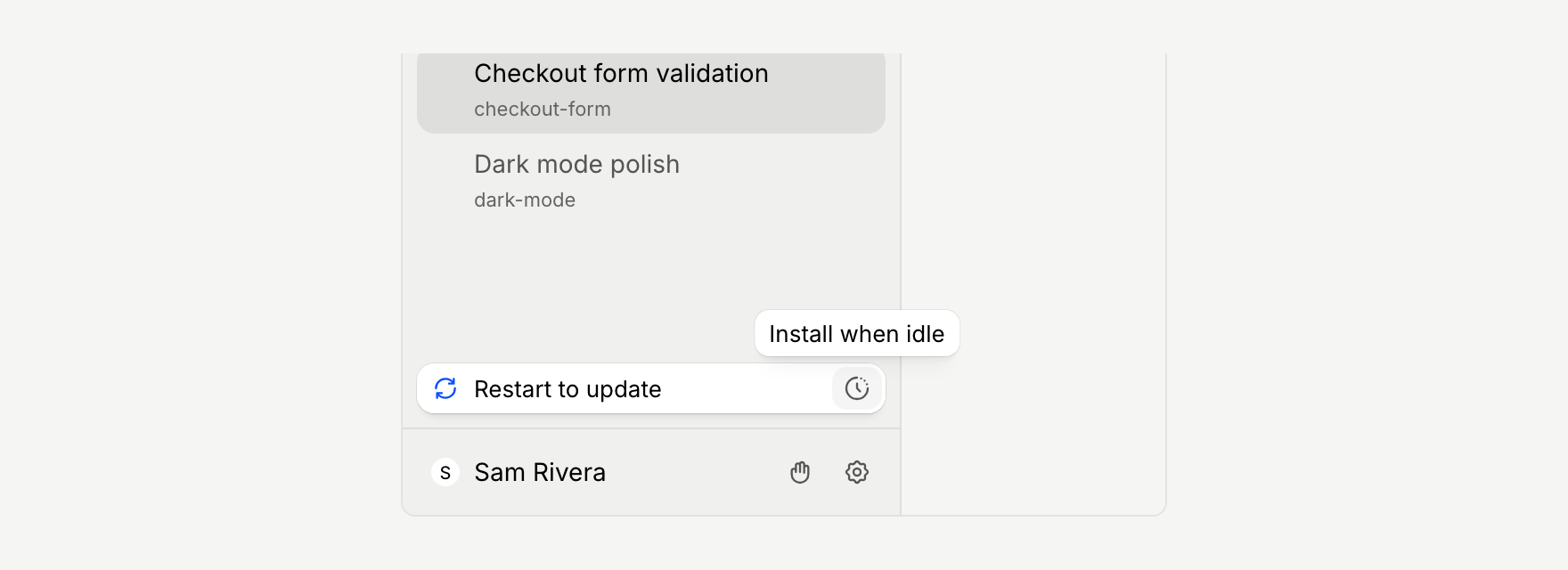
If you see Update available instead, the update has not been downloaded yet. Select it to start the download, then restart when the prompt changes to Restart to update.
Restarting closes the app, so let running work finish first, or queue the update with Install when idle.
Check for updates yourself
- Open Settings and go to General.
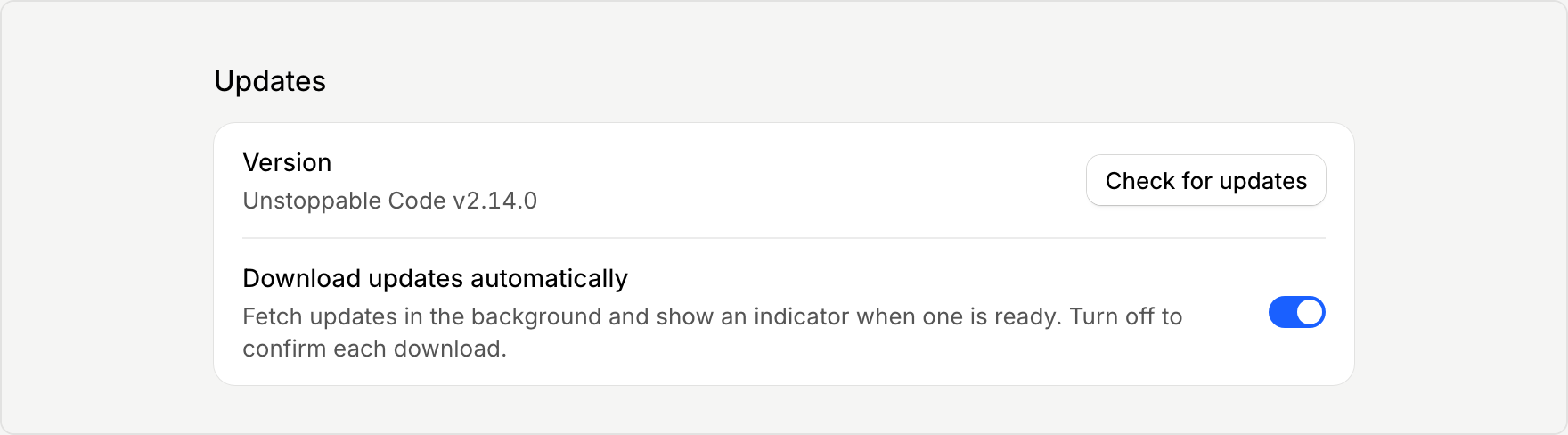
- In the Updates section, find the Version row.
- Select Check for updates.
The app tells you when it is up to date.
Choose whether updates download automatically
In the same Updates section, Download updates automatically is on by default. Turn it off if you would rather confirm each download. The sidebar then shows Update available and waits for you.
If an update fails
If the sidebar shows Update failed, check your internet connection and select Check for updates again. You can also download the latest build from the download page.
Still stuck? Contact support.